Scratch for Children 2: give a character a face and a move
A story needs feelings. In Scratch for Children 2, a child picks a friend's face and move from pictures, then makes it talk. Here's how the looks blocks work.
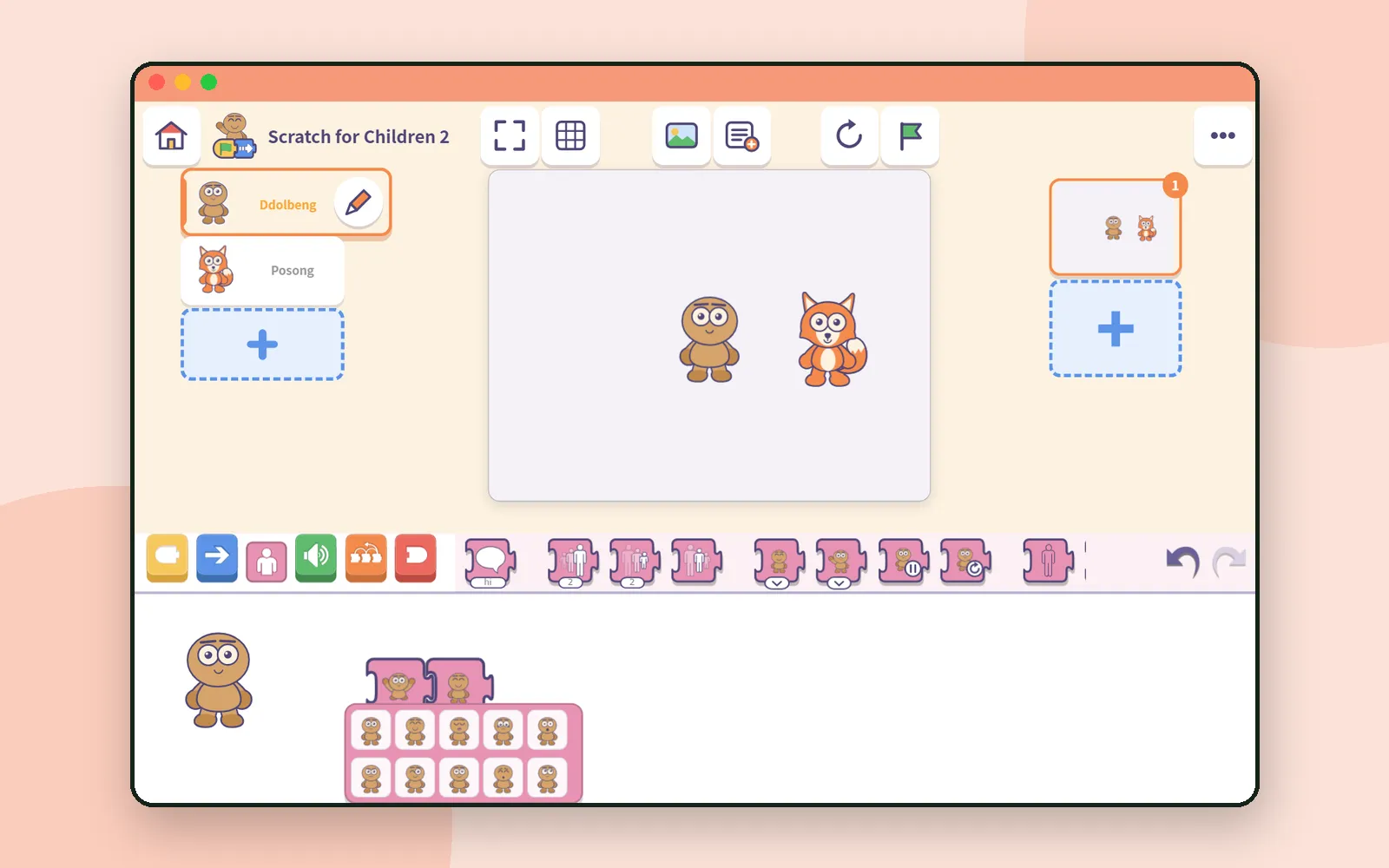
A character that only walks from left to right isn’t a story yet. A story starts when the character feels something: surprised, sleepy, delighted.
In Scratch for Children 2, a child who can’t read yet can still give a friend a face, a move and a few words. Everything is chosen from pictures. Let’s make a tiny scene together. 🎭
The friends on the stage
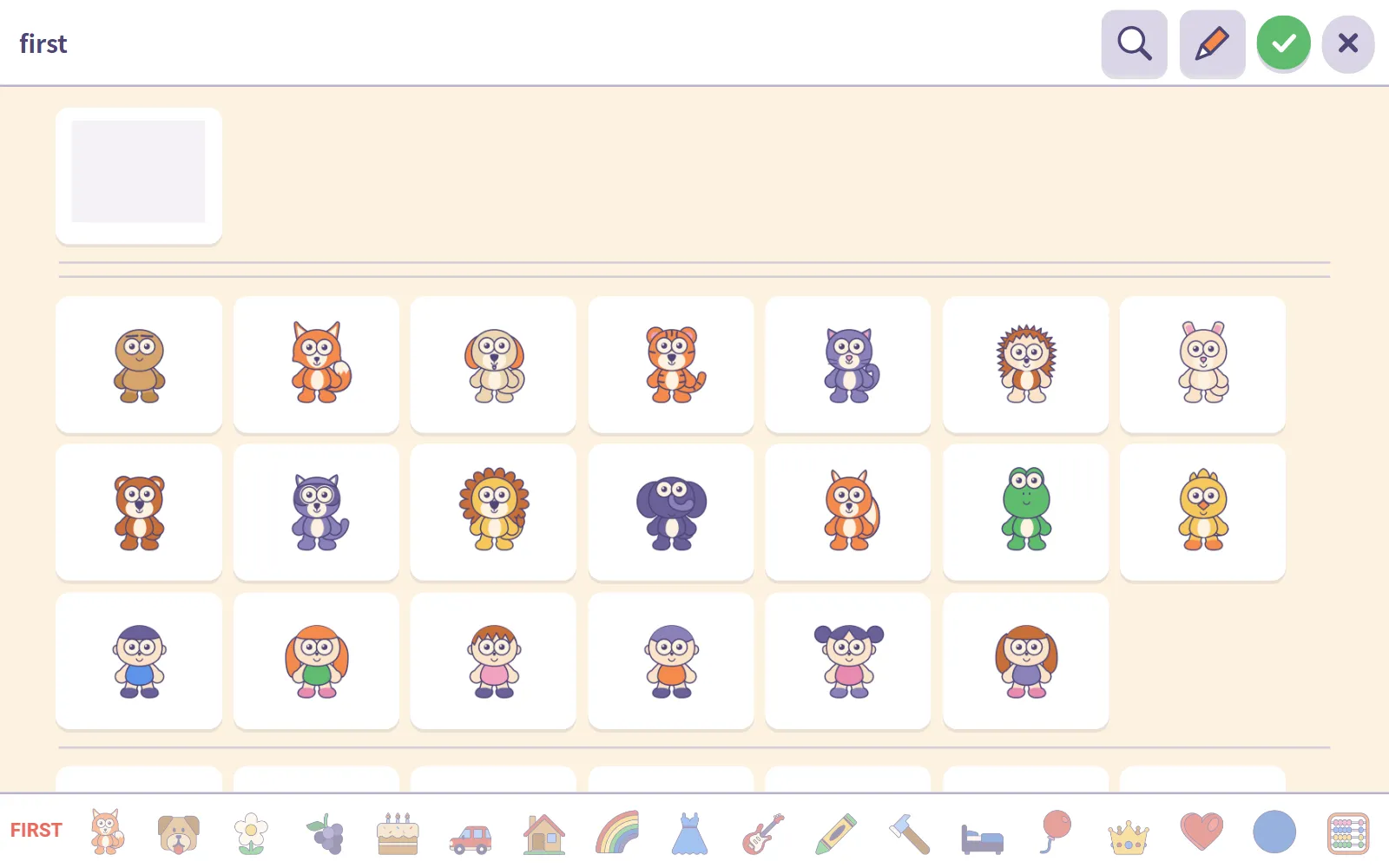
Press the dotted + under the character list and the friends appear: Ddolbeng, Posong, Bori, Tori, Nabi, Piyo and the rest of the gang, with children like Mina and Hajun alongside them. They’re the same friends who live in Ddolbeng.
Every one of them was drawn so its face and body can change, and that’s what the pink drawer is for.
The pink drawer: looks blocks
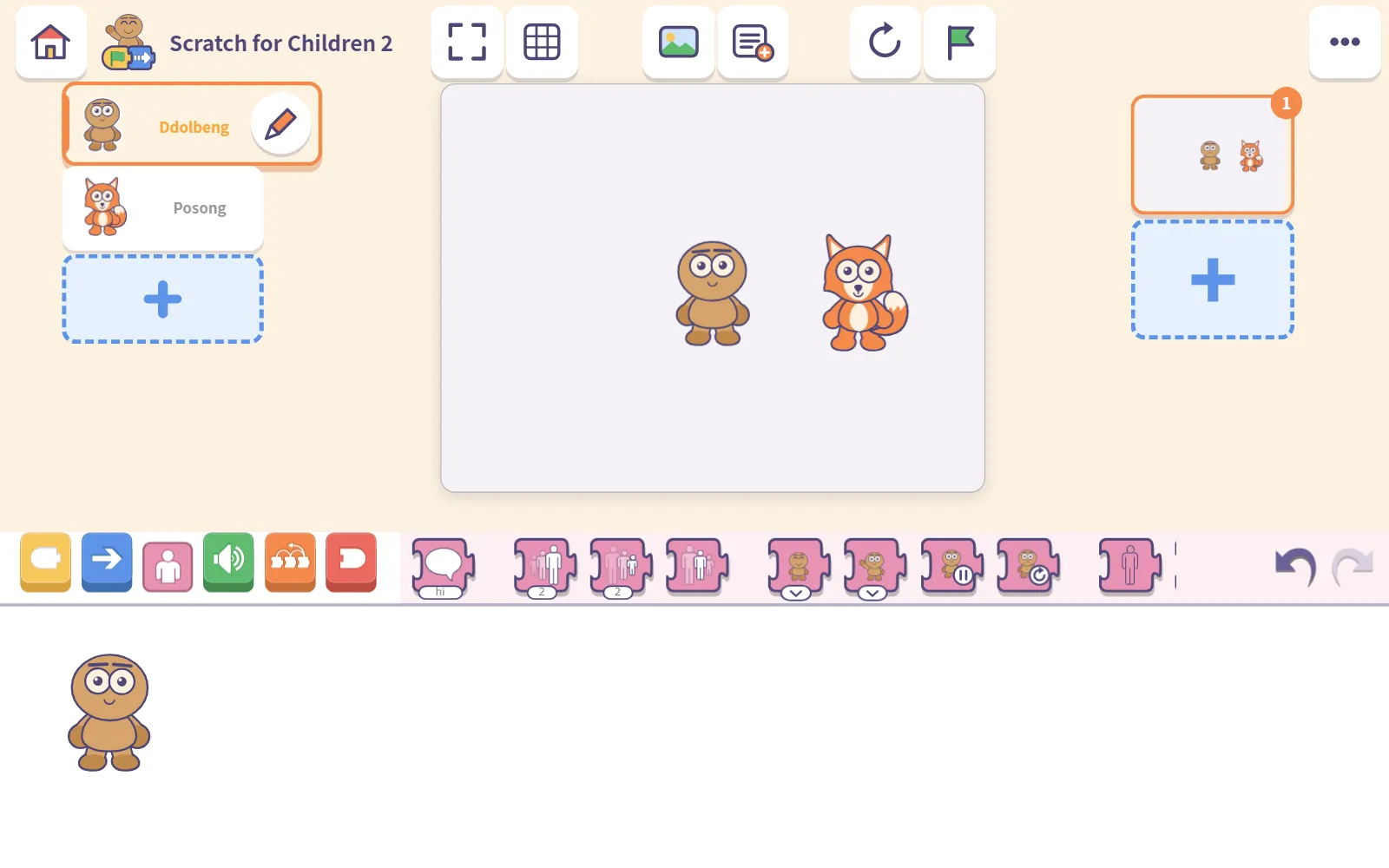
Press the pink button at the left of the block drawer and the Looks Blocks appear. The three we’ll use today:
| Block | What it does |
|---|---|
| Set face | Chooses the character’s expression |
| Set move | Chooses an action for the whole body, like walking or sitting, and keeps repeating it |
| Say | Shows a message in a speech bubble above the character |
There’s also Hold still, which stops a moving face or action right where it is.
Pick a face from pictures
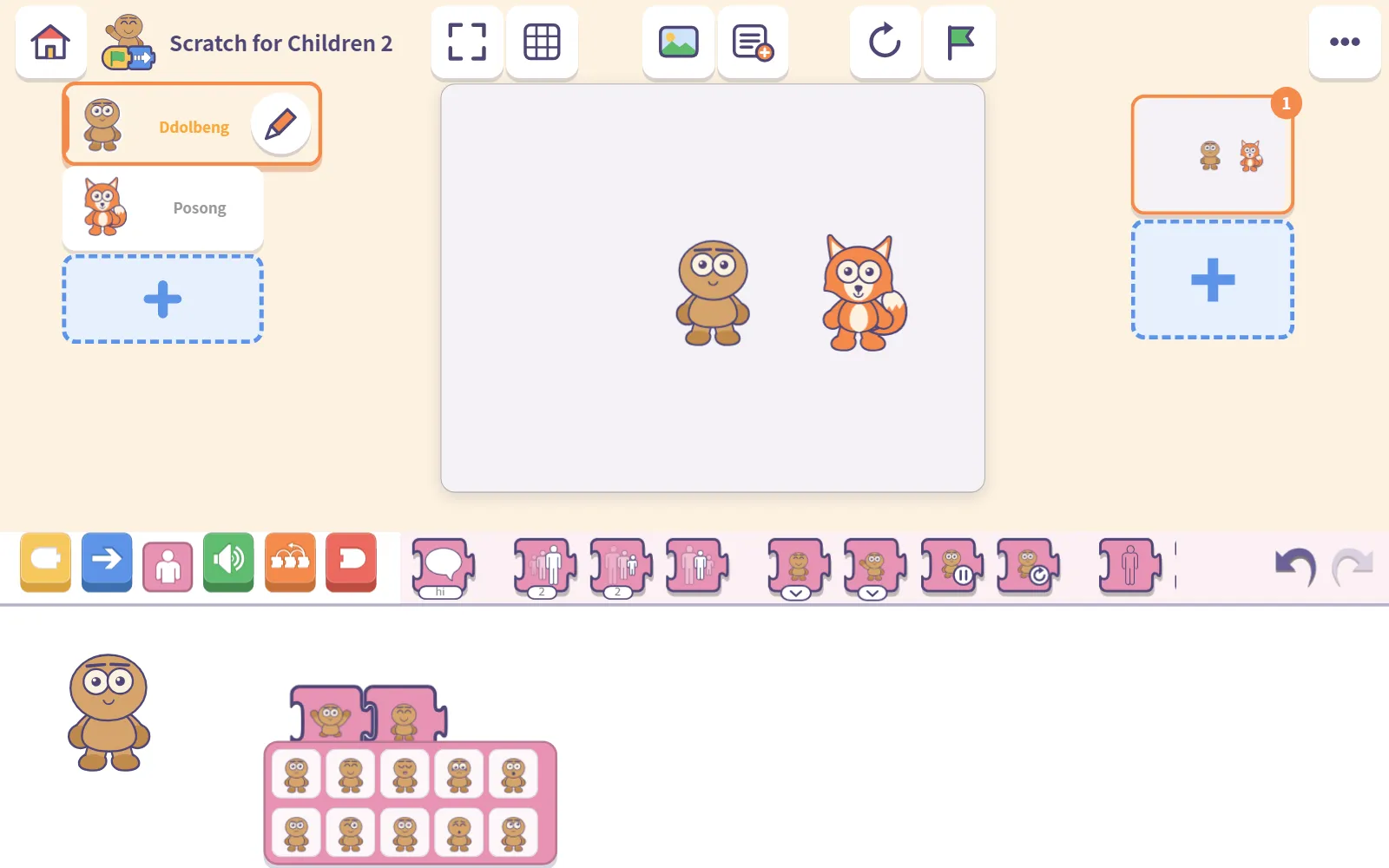
Drag Set face into the building area and press the little arrow under it. That character’s faces fan out as pictures: Smile, Laughing, Surprised, Sad, Sleepy, Wink and more. Your child simply points at one.
The block remembers the meaning, like “surprised”, not a particular drawing. So if you swap in a different friend later, the story still works. (We showed this in Scratch for Children 2: block coding before kids can read.)
Pick a move
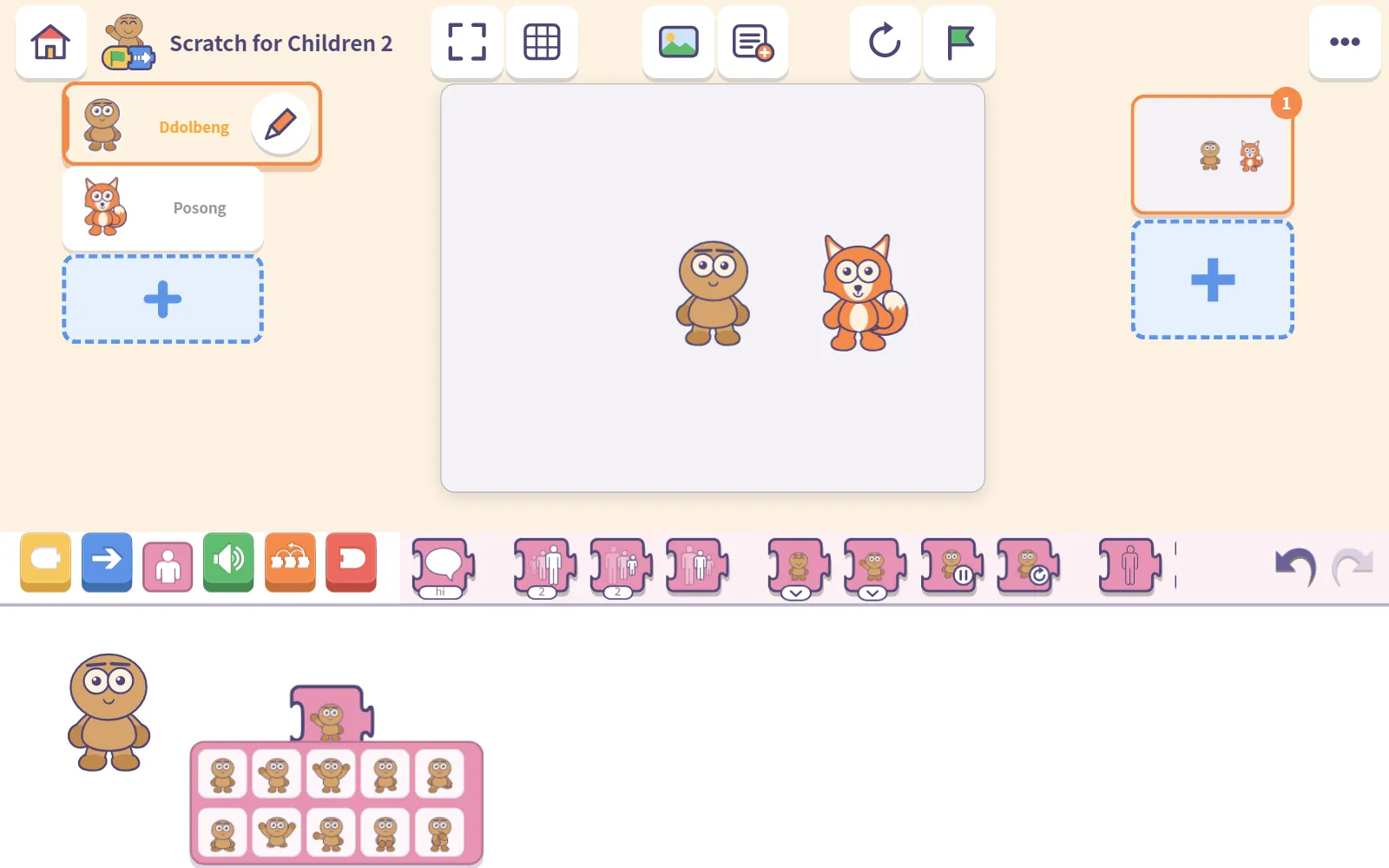
Set move works the same way, but for the whole body: Walk, Run, Jump, Wave, Clap, Cheer, Sit, Point. The chosen move keeps repeating, so a friend set to Wave goes on waving until you change it or use Hold still.
Make it talk
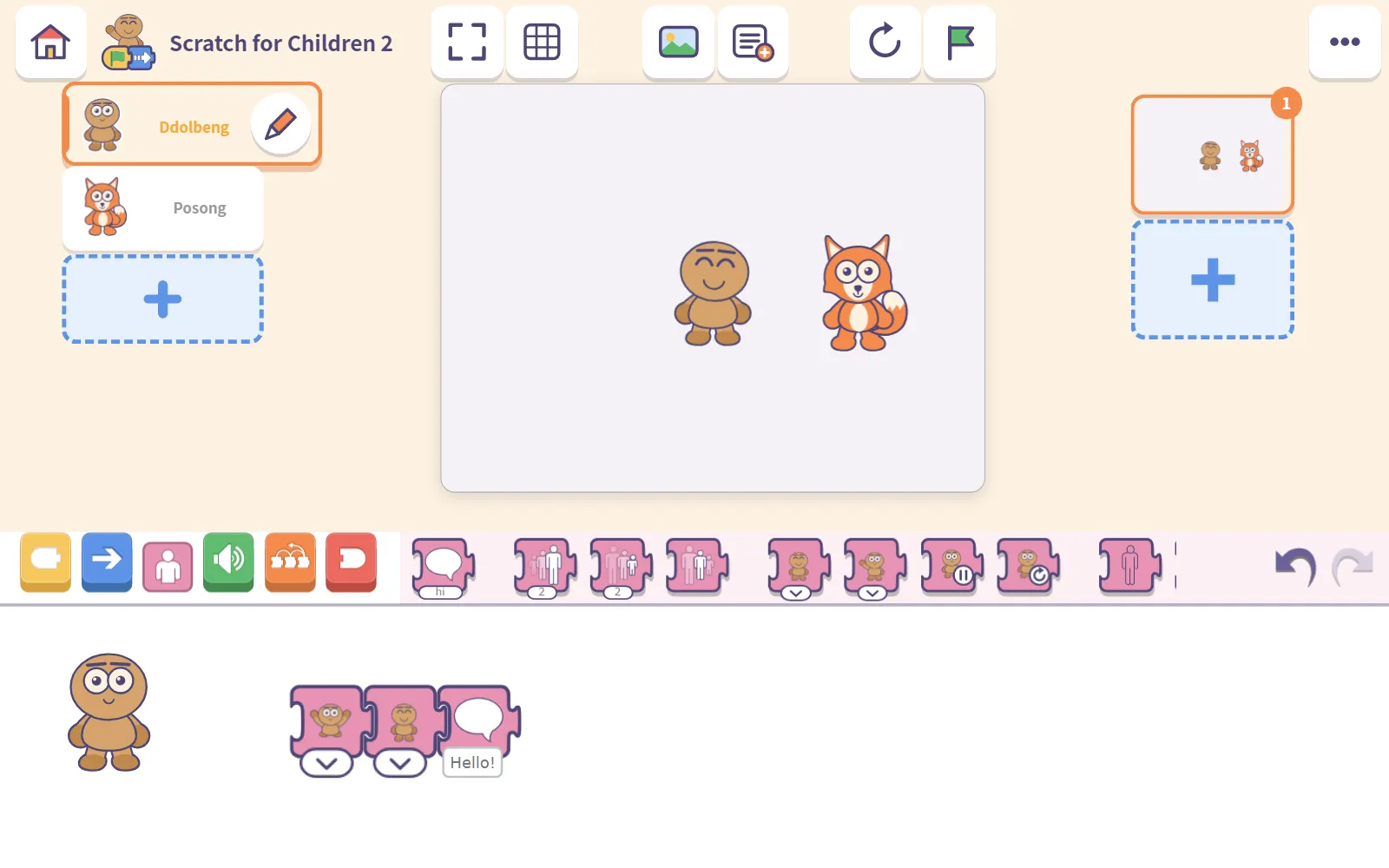
Add a Say block and type a few words, and they appear in a speech bubble. If your child can’t write yet, a grown-up can type for them, which is exactly what the app’s guide for grown-ups suggests.
Now join the blocks in order. For example:
Press the row, and your friend waves, says hello and smiles. That’s a scene.
Coming up next
New to the app? Start with Your first 30 minutes with Scratch for Children 2. Want to know which friend is which? See Meet Ddolbeng and friends.
Next time we try something for older kids and grown-ups: AutoDraw, where AI guesses your doodle.
Frequently asked questions
How does a child choose a face without reading?
Press the little arrow under the Set face block and that character's faces appear as pictures. The child just points at the one they want.
What is the difference between Set face and Set move?
Set face changes the expression, like smiling or surprised. Set move changes the whole body, like walking, running or sitting, and the chosen move keeps repeating.
How do we make a character stop moving?
Use the Hold still block. It stops a moving face or action where it is. Using a face or move block again releases it.
My child can't type yet. Can the character still talk?
Yes. The Say block shows a speech bubble, and a grown-up can type the words for the child.