Scratch for Children 2: block coding before kids can read
Block coding for ages 5–7, before kids can read. A tour of Scratch for Children 2: what's inside, how saving and sharing work, and where grown-ups start.
Hi again! 👋
When a child is ready for their very first taste of coding, they often can’t read yet. That’s exactly who Scratch for Children 2 is for. Today let’s open it up together: what’s on each screen, the little details we love, and a few things grown-ups will want to know before starting.
What is Scratch for Children 2?
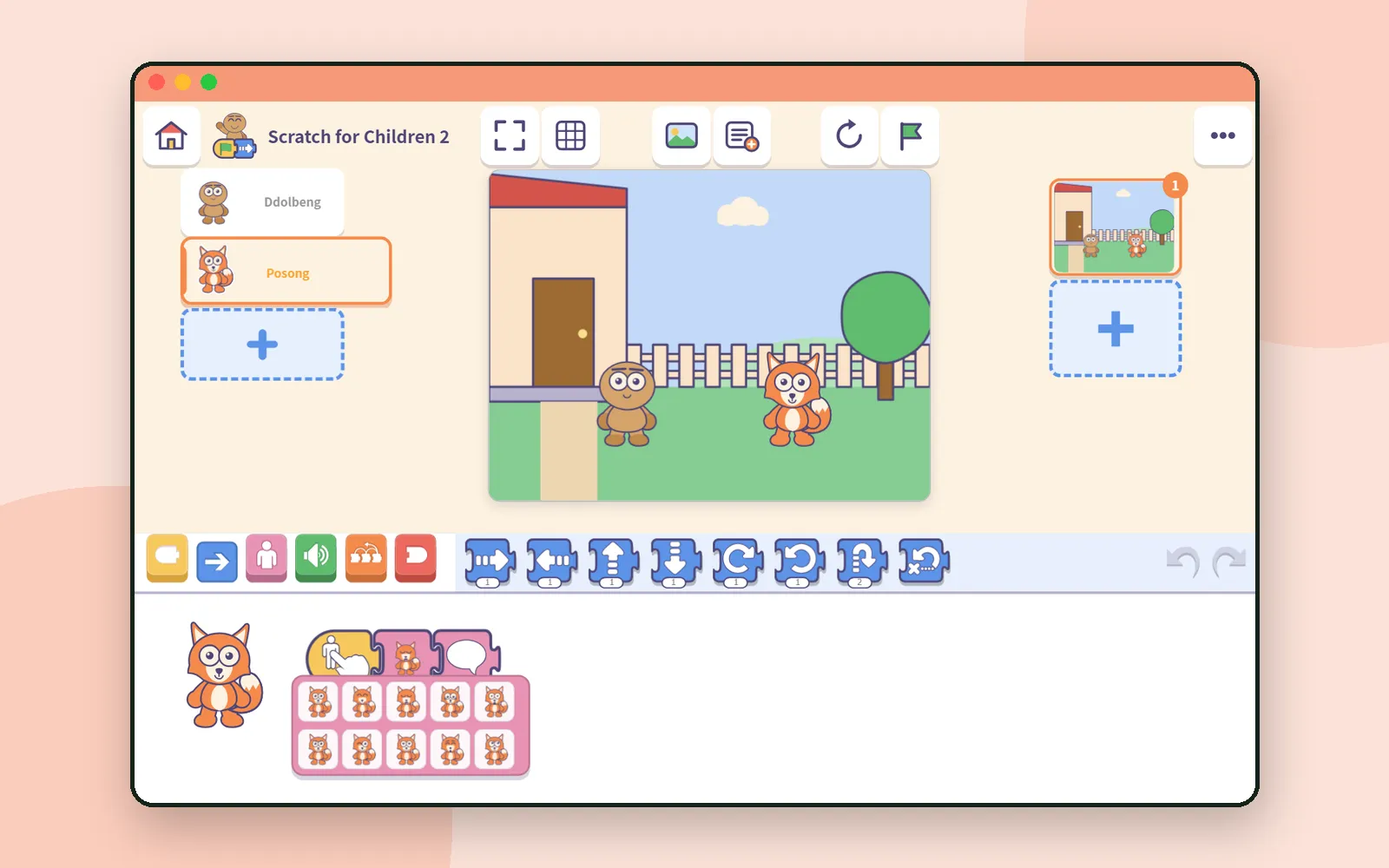
Scratch for Children 2 is a block coding playground made with five- to seven-year-olds in mind. A child puts a character on the stage, then drags blocks together to make it walk, talk and disappear. The blocks carry pictures, so reading is never required.
It’s rooted in ScratchJr from the MIT Media Lab, but the characters, backgrounds and screens were all drawn anew, Ddolbeng, Posong and the rest of the gang included.
CodingTeading appScratch for Children 2Block coding for young childrenFour doors on the first screen
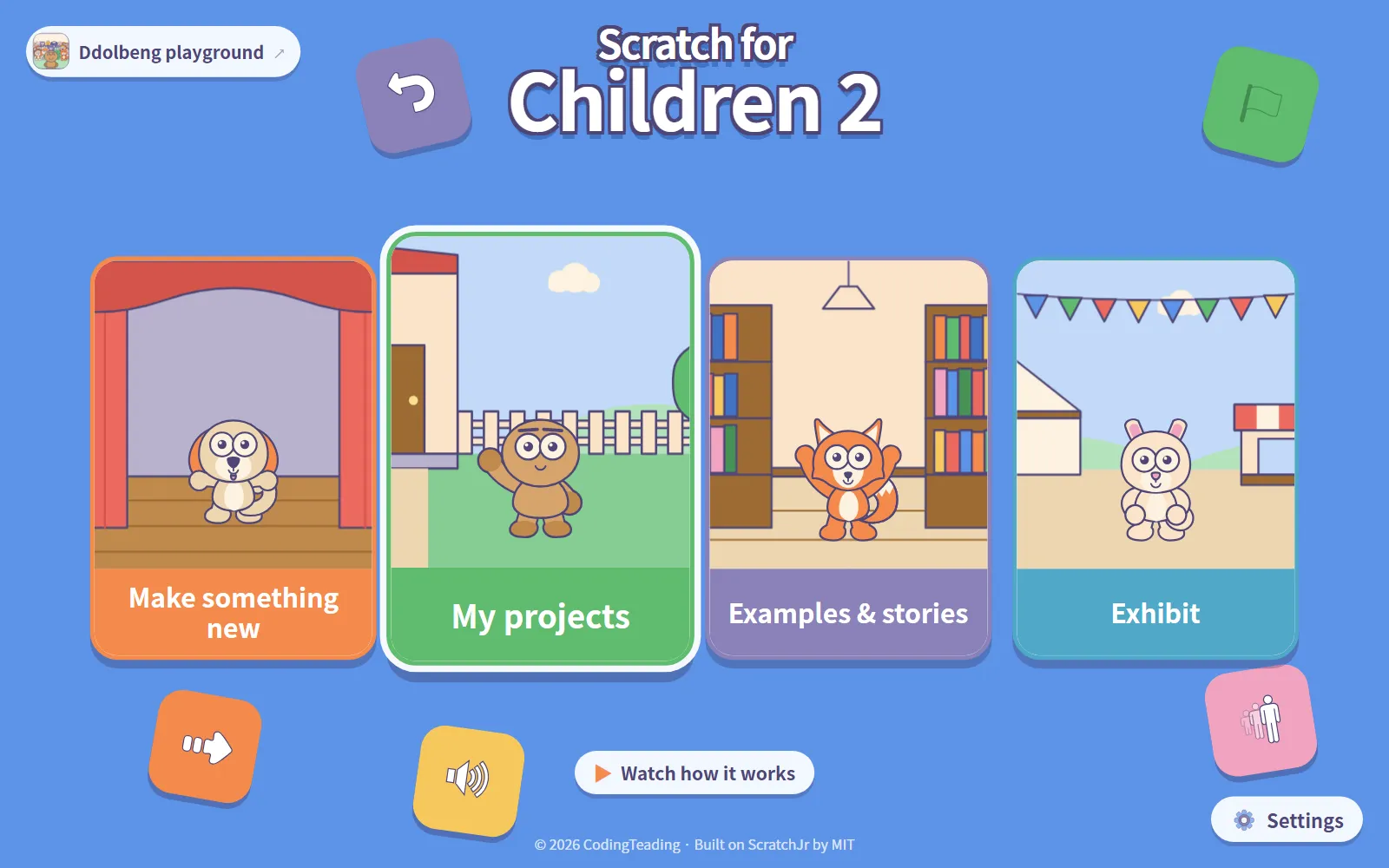
Press Start and the first screen opens into four doors:
- Make something new: jump straight into the making screen
- My projects: everything your child made is kept here
- Examples & stories: little projects to press and change
- Exhibit: projects other children made and sent in
The first time you visit, a friendly character pops up with a short walkthrough. Follow it with Next, or close it with Stop.
The making screen
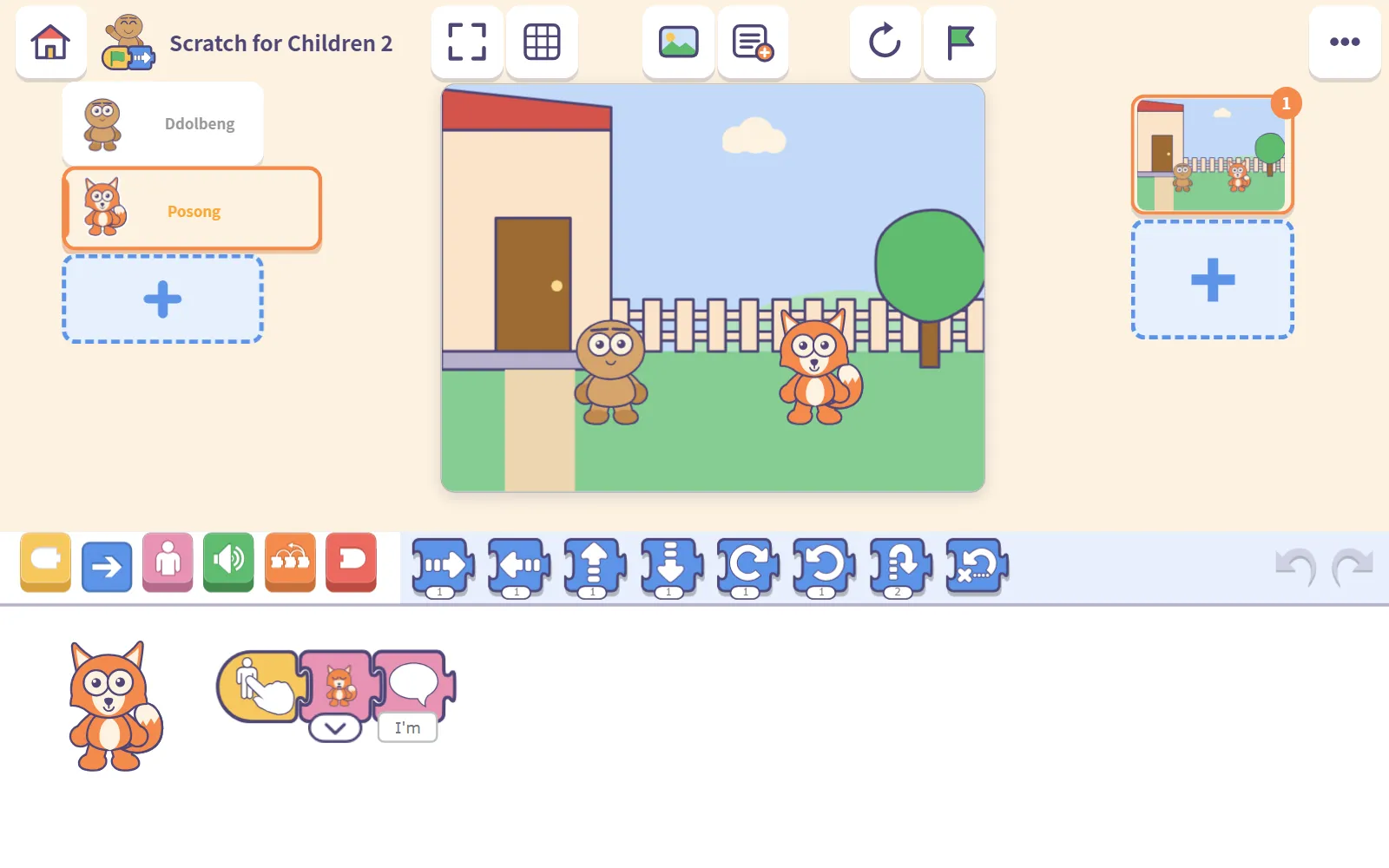
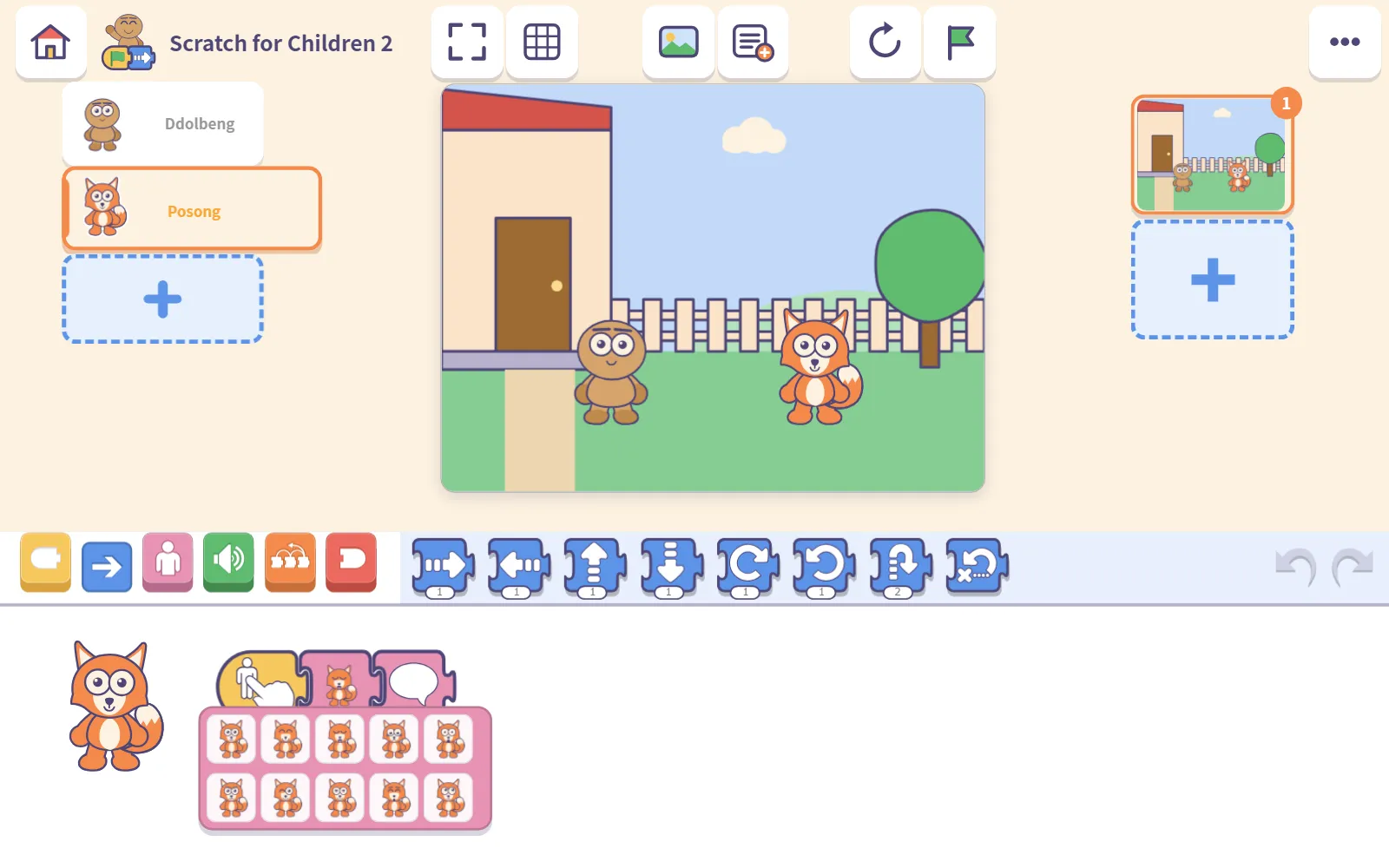
The making screen has five areas:
| Area | What it’s for |
|---|---|
| Stage | Where what they made actually happens |
| Characters | The characters on this page. The selected one is the one the blocks drive |
| Pages | Scenes in the story |
| Block drawer | Blocks sorted by colour |
| Building area | Where blocks are joined up. Tap a row and it runs right there |
The blocks are sorted by colour, which makes them easy to talk about with a child: yellow for when to start, blue for movement, pink for looks, green for sound, orange for flow and red for endings.
The little things we changed
Building Scratch for Children 2 gave us the chance to fix the things young children kept bumping into. Here are our favourites.
Characters really move. A character on the stage is alive: one that walks alternates its legs, and one that claps brings its hands together. If you’d rather it stood still, there’s a stay still block for that.
Pick the face you want. Press the face block and that character’s faces fan out as pictures. Smiling, crying, surprised: a child just points at one. The block remembers the meaning, like “smile,” rather than a picture, so if you swap in a different character, the story still works.
You can actually find things. There are lots of object pictures, so there are three ways in: category tabs, a search box for the grown-up sitting alongside, and Recently used for the child who can’t read yet.
Touch and mouse, both at once. There’s no mode to switch. Poke at a touchscreen laptop, grab the mouse, and nothing breaks. It carries on just the same on a tablet.
Examples that are safe to break
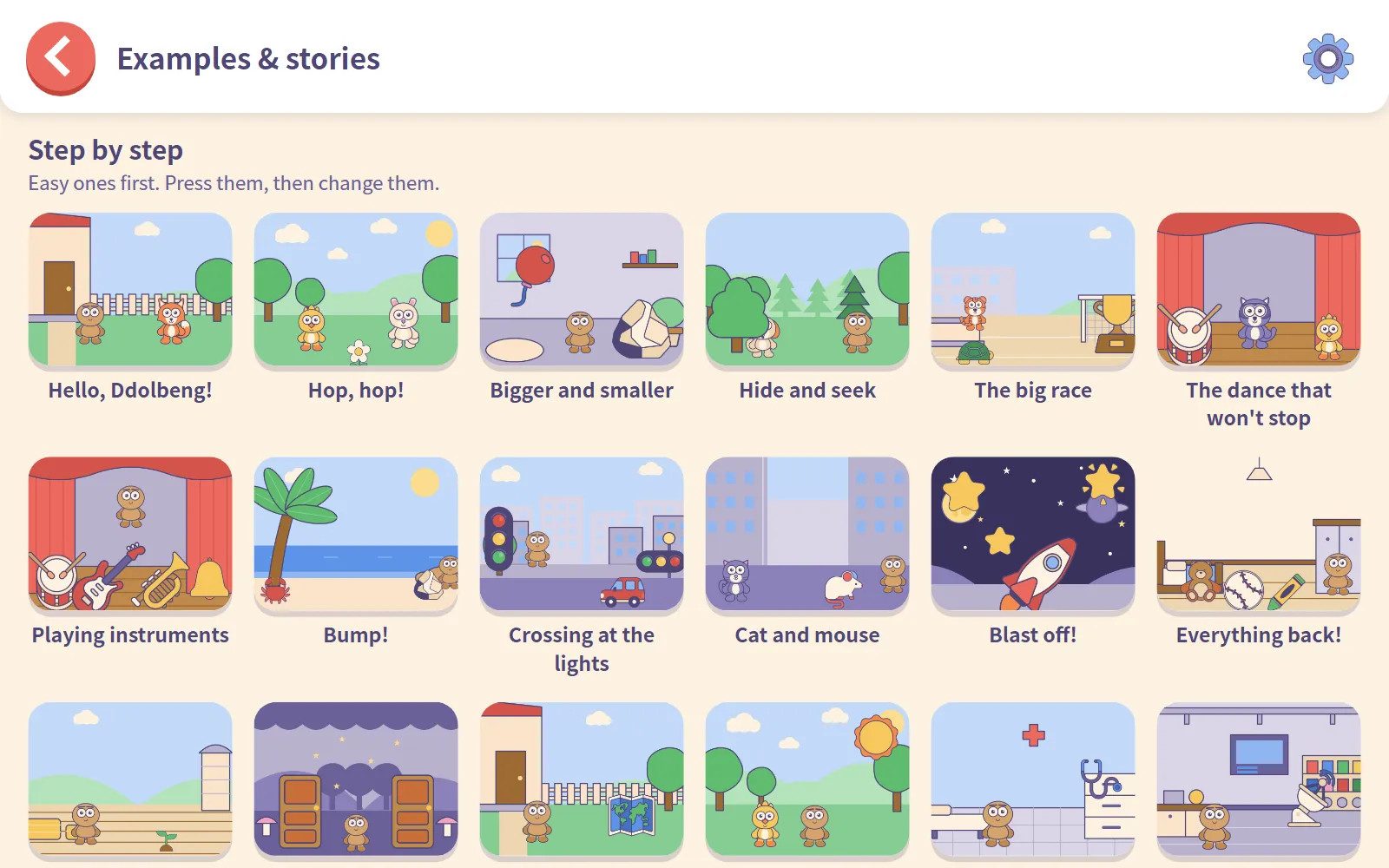
Examples & stories holds examples to learn from and story books to read and change. Some of the examples are based on ScratchJr sample projects by BootUp PD, used with permission and redrawn with the new artwork.
Here’s the part we love most: the moment a child edits an example, it becomes their own project, and the original stays put. So it’s completely fine to pull blocks apart and see what happens.
Sharing: files, the player and the exhibit
Pass projects around as files. A project can be saved as a single file with Export to a file and opened again with Open a project file. Carry work from home to a school tablet, or hand out a teacher’s example to the whole class. It all happens on the device, without a server.
Watching someone else’s project. Open another child’s project and it plays full screen, not in the making screen. Projects that need tapping can still be tapped, and if you like one, Copy it takes a copy so you can change it.
The exhibit. Projects sent to the exhibit are published only after a person has looked at each one and approved it.
Good to know before you start
- Nothing to install. It opens straight in the browser. Add it to the home screen and it behaves like an app.
- No account. No sign-up, no login, no password.
- Projects save automatically, on that device. They don’t show up on other devices, and clearing the browser’s data clears them too. To keep a copy, use Export to a file.
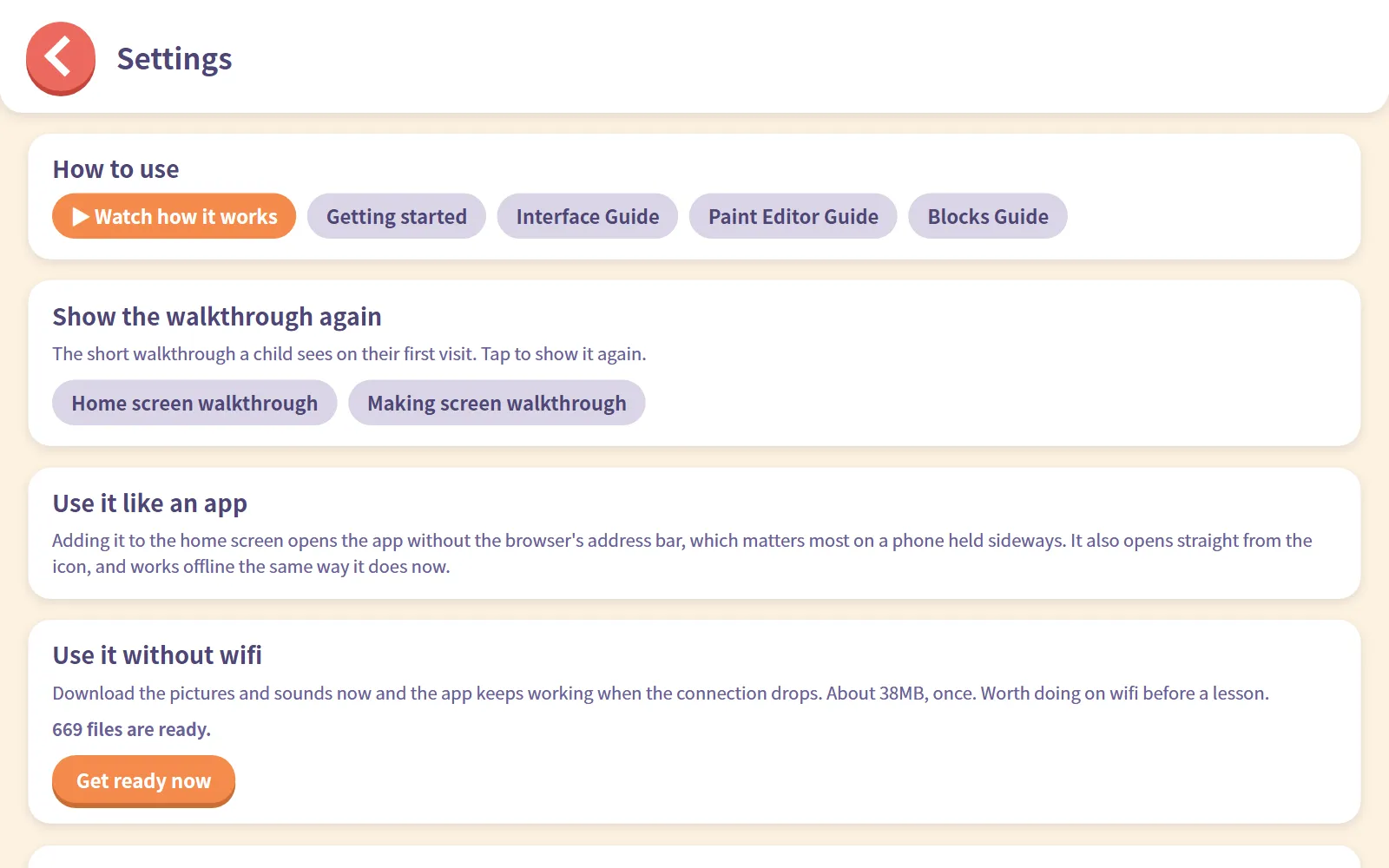
- Heading somewhere without internet? In Settings, Use it without wifi downloads the pictures and sounds in advance, so the app keeps working when the connection drops. It’s worth doing on wifi before a lesson.
For parents and teachers
In Settings, under How to use, there are pages written for grown-ups: Getting started, Interface Guide, Paint Editor Guide and Blocks Guide.
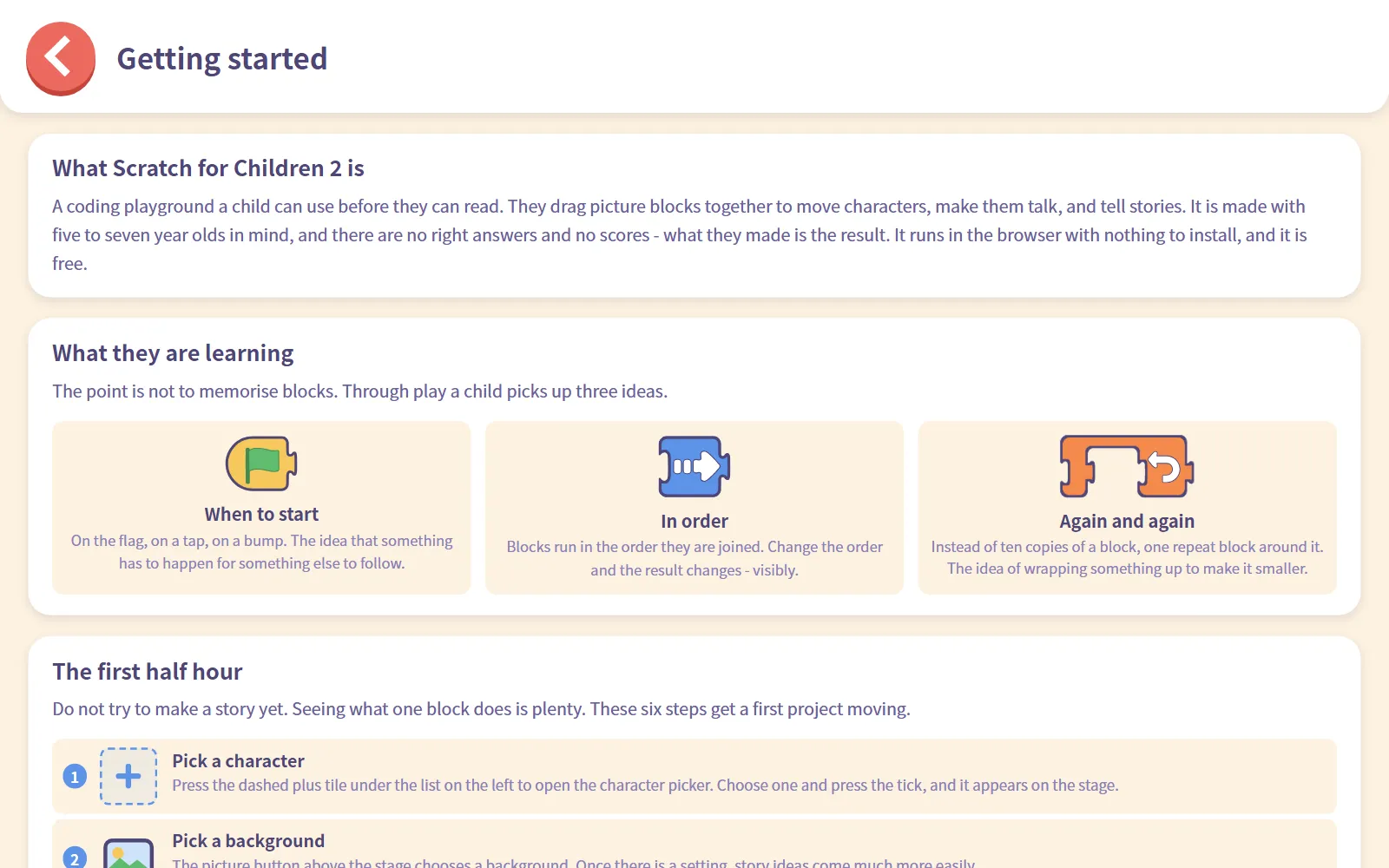
Getting started is a great five-minute read before your first session. It says the point isn’t to memorise blocks. Through play, a child picks up three ideas:
- When to start: something has to happen for something else to follow
- In order: blocks run in the order they’re joined, and changing the order changes the result
- Again and again: one repeat block instead of many copies of a block
It also walks through the first half hour, step by step.
Coming up next
In the next post we’ll sit down with the app and follow that first half hour screen by screen: Your first 30 minutes with Scratch for Children 2. And if your child is still a little young for blocks, the Ddolbeng playground link on the first screen leads to Ddolbeng, our village of tap-to-play games.
Want to see all our apps at once? Head back to Meet CodingTeading.
Next time: Ddolbeng, a playground for little ones.
Frequently asked questions
What age is Scratch for Children 2 for?
It's made with five- to seven-year-olds in mind. The blocks carry pictures, so a child doesn't need to be able to read.
Do we need to install anything or make an account?
No. It opens straight in the browser, and there's no sign-up, no login and no password. You can add it to the home screen if you'd like it to behave like an app.
Where are my child's projects saved?
Automatically, on the device you're using. They don't appear on other devices, and clearing the browser's data clears them too. To keep a copy or move a project, use Export to a file.
How is it related to ScratchJr?
It's built on ScratchJr from the MIT Media Lab. CodingTeading drew the characters, backgrounds and screens anew, and some of the examples are based on ScratchJr sample projects by BootUp PD, used with permission. The app isn't affiliated with or endorsed by the organisations behind ScratchJr.